Getting started
Fomo copy trading: how to copy traders with Maya
Choose a profile, networks, buy size and exits, then fund the relevant Maya wallets and review the first eligible signal.
Paste a Fomo profile into Maya, choose the wallets and chains to follow, set your buy size and exit rules, then fund and authorize your Maya wallet. A saved copy follows eligible new trades; it does not purchase the trader’s existing portfolio.
1. Choose the trader, then choose what to follow
Start with a Fomo profile link or a public wallet address. A trader may have more than one wallet, and one EVM wallet may operate on several networks. Review the selected wallets and chains rather than assuming every address in a profile belongs in your copy.
A leaderboard is a starting point for research. Look at how often the trader trades, how long positions remain open and whether the history includes completed exits. A large open gain is different from money already realized. Choose a trading pattern you can fund and understand; the biggest historical profit is not automatically the best fit for your account.
2. Use your budget, not the leader’s position size
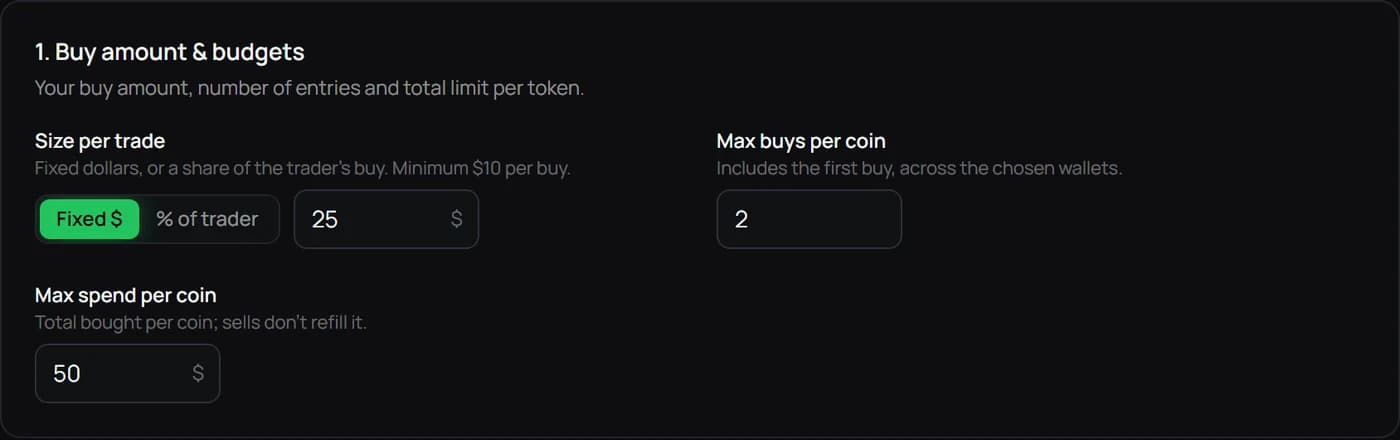
Maya’s current minimum copied buy is $10. A fixed buy amount controls the size of each eligible entry, but repeated buys can still consume more cash. Review the maximum buys per coin, token budget and other entry limits before saving. Those settings determine how a busy trader can use your balance.
For example, four $10 buys use $40 of trade value before service fees and network costs. Funding only enough for one buy does not fund the next three. This is arithmetic for planning, not a recommended allocation. Use an amount whose loss you could tolerate.
3. Fund only the networks you intend to copy
Open Wallet and select the receiving network. Solana needs its own wallet, USDC and SOL. Base uses your EVM wallet with USDC and ETH. The same EVM address on another network has a separate balance. Robinhood Chain uses USDG for trading cash.
You can save a copy with unfunded selected chains, but those chains cannot execute until funded. The Order feed records the skip reason. Missed entries are not replayed when money arrives later. If you only want Solana, deselect other chains instead of treating their balances as part of one shared pot.
4. Decide the exit before starting
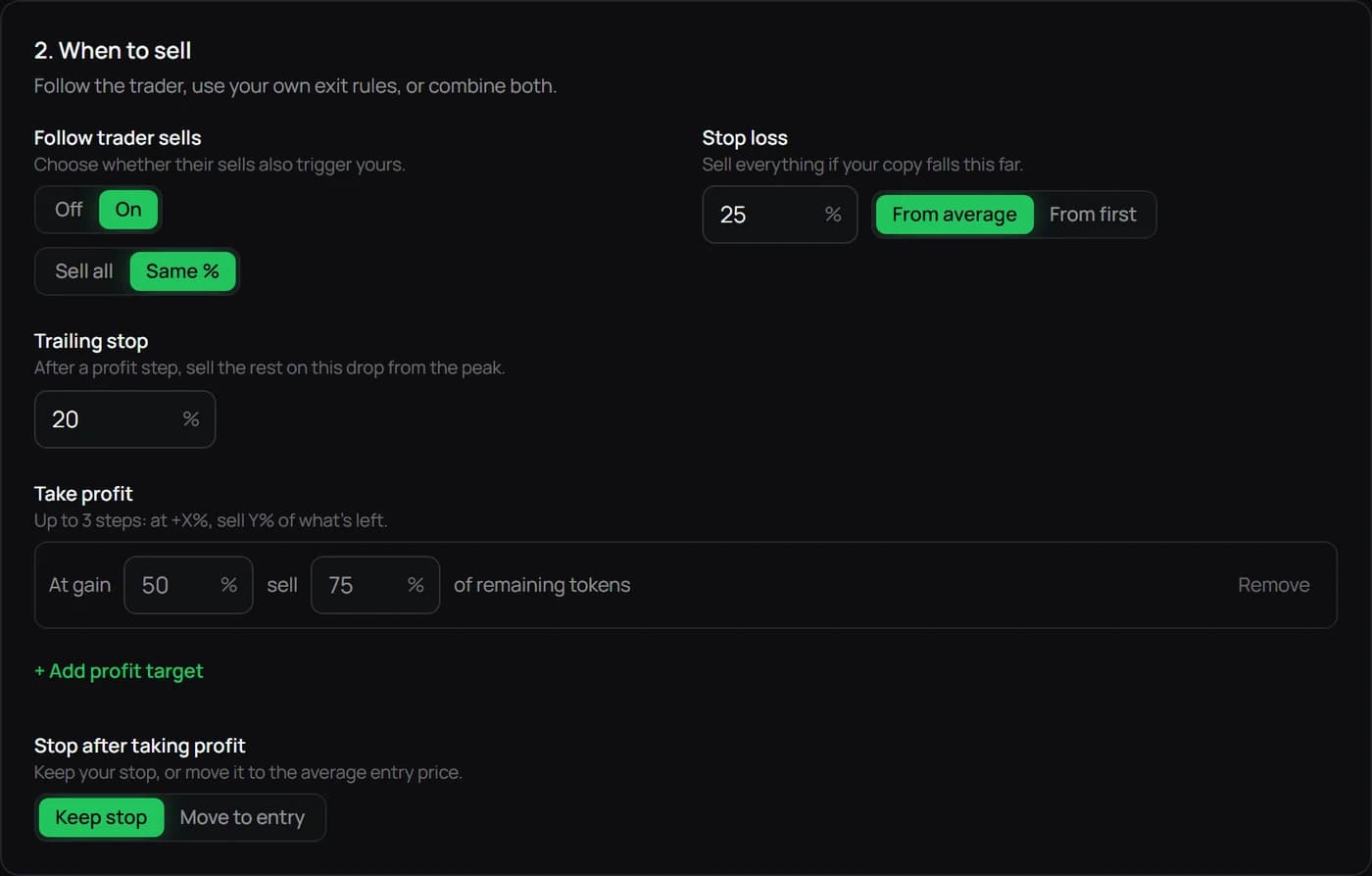
Check whether your setup follows leader sells and how it treats partial exits. A take-profit trigger describes a price move; a sell percentage describes how much of your position leaves. For example, a +50% trigger that sells 75% leaves one quarter of the tokens open.
A stop loss is an instruction to attempt an exit after a threshold is observed. It does not guarantee that exact price. Thin liquidity, sudden moves and a failed route can produce a worse outcome. Review the selected preset and your edited settings together on the final screen.
5. Verify the first complete trade cycle
Grant trading permission and start the copy after reviewing the account, network and rules. Terminal distinguishes a filled transaction from a skipped signal. Read both Result and Reason. Saving the configuration alone does not prove a trade happened.
After an entry, check the position quantity and cost. After a sale, check whether it closed the entire position or only part. Compare the transaction, realized result and remaining tokens. Start with one trader until you can explain those records. Your execution price, fees and return can differ from the leader’s.
Changing or stopping a copy
Use the copy controls in Terminal to edit a trader’s rules. For an account pause, read the selected handling of existing positions before confirming. A pause cannot undo a transaction already broadcast. Switching to Paper also does not close Live positions.
If your goal is to withdraw, check the separate sale and withdrawal flows. Do not delete a funded wallet or repeatedly approve an action to solve a stale screen. Review History and any transaction hash before retrying.
Keep your next step clear.
Review the wallet, network and copy rules before starting.
Open Maya dashboard →Read the full guide →